Sbctl in archlinux
This is a blog/guide on how to setup a secureboot signed uefi boot using grub in archlinux.
I’m sure some of you can relate when I say that dealing with Valorant’s anti-cheat(kernal level spyware) measures (I know, I hate it too)
has driven me up the wall. And to make matters worse, switching between my laptop’s UEFI settings every time I boot into Windows was a real pain.
That’s why I decided to search for solutions and stumbled upon the Arch Linux wiki on Unified Extensible Firmware Interface (UEFI). After some digging, I realized that setting up
Secure Boot with GRUB in Arch Linux wasn’t as complicated as I thought it’d be.
The main stuff needed here are:
Also be warned that not every thing showed here should work on your pc/laptops and it may/may not brick ur bios.

Here, we’re taking control by signing our bootloader (Grub) and EFI files with our
own keys. To do this, we need to enter the setup mode of Secure Boot in BIOS/UEFI.
As for getting into this mode, there are various methods, but one way is similar to
what’s shown below:
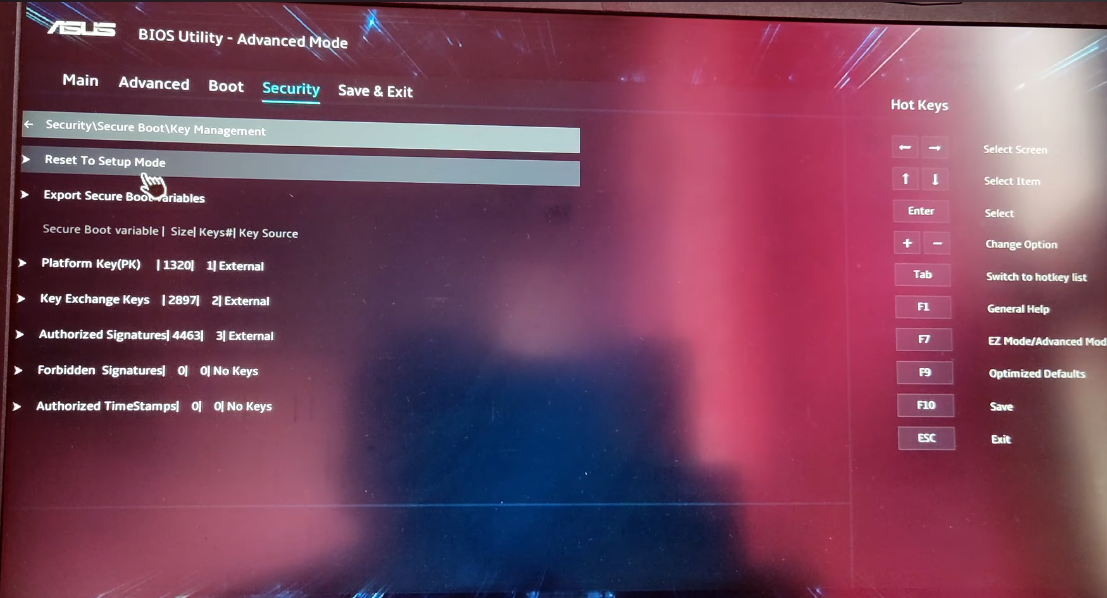
After it is in setup mode and secureboot disabled reboot into archlinux and install sbctl using
sudo pacman -S sbctl
and check for sbctl status (need root access)
sbctl status
You should see that sbctl is not installed and secure boot is disabled.
Then create your custom secure boot keys:
sbctl create-keys
Enroll your keys, with Microsoft’s keys, to the UEFI:
sbctl enroll-keys -m
Check the secure boot status again:
sbctl status
sbctl should be installed now, but secure boot will not work until the boot files have been signed with the keys you just created.
before signing , Re-install GRUB to utilize Microsoft’s CA certificates (as opposed to shim) – replace ’esp’ with your EFI system partition:
sudo grub-install --target=x86_64-efi --efi-directory=esp --bootloader-id=GRUB --modules="tpm" --disable-shim-lock
Check what files need to be signed for secure boot to work:
sbctl verify
Now sign all the unsigned files. Usually the kernel and the boot loader and grub need to be signed. For example:
sbctl sign -s /boot/vmlinuz-linux
sbctl sign -s /boot/EFI/BOOT/BOOTX64.EFI
sbctl sign -s /boot/EFI/GRUB/grubx64.efi
The files that need to be signed will depend on your system’s layout, kernel and boot loader.
Now you are done! Reboot your system and turn secure boot back on in the firmware settings. If the boot loader and OS load, secure boot should be working. Check with:
sbctl status
it should be something like this –>

Following this procedural sequence, Arch Linux can now be booted, thereby effecting a
seamless transition into a functional operating environment using secure-boot!.
As a precautionary measure, it is incumbent upon the reader to acknowledge that I assume no liability for any unforeseen consequences that may arise from the implementation of these instructions without proper circumspection and technical competence.